

xoxb-... or xapp-...) for this flow.
Before you start
You need:- A Slack workspace where you can install or request approval for Slack apps.
- A Slack app that is published in the Slack Marketplace or marked as an internal app.
- A Slack OAuth client ID and client secret from that app.
- The Slack MCP server URL:
https://mcp.slack.com/mcp.
Create or approve the Slack app
In Slack, an admin should create or approve an app for OpenWork’s MCP access.- Open Slack API apps and create a new app, or open the existing internal app you want to use.
- Go to
OAuth & Permissions. - Add this redirect URL:
http://127.0.0.1:19876/mcp/oauth/callback. - Add the
User Token Scopesfor the Slack MCP tools your team wants OpenWork to use. - Save the app and install or approve it for the workspace.
- Go to
Basic Information>App Credentialsand copy theClient IDandClient Secret.
Open Extensions
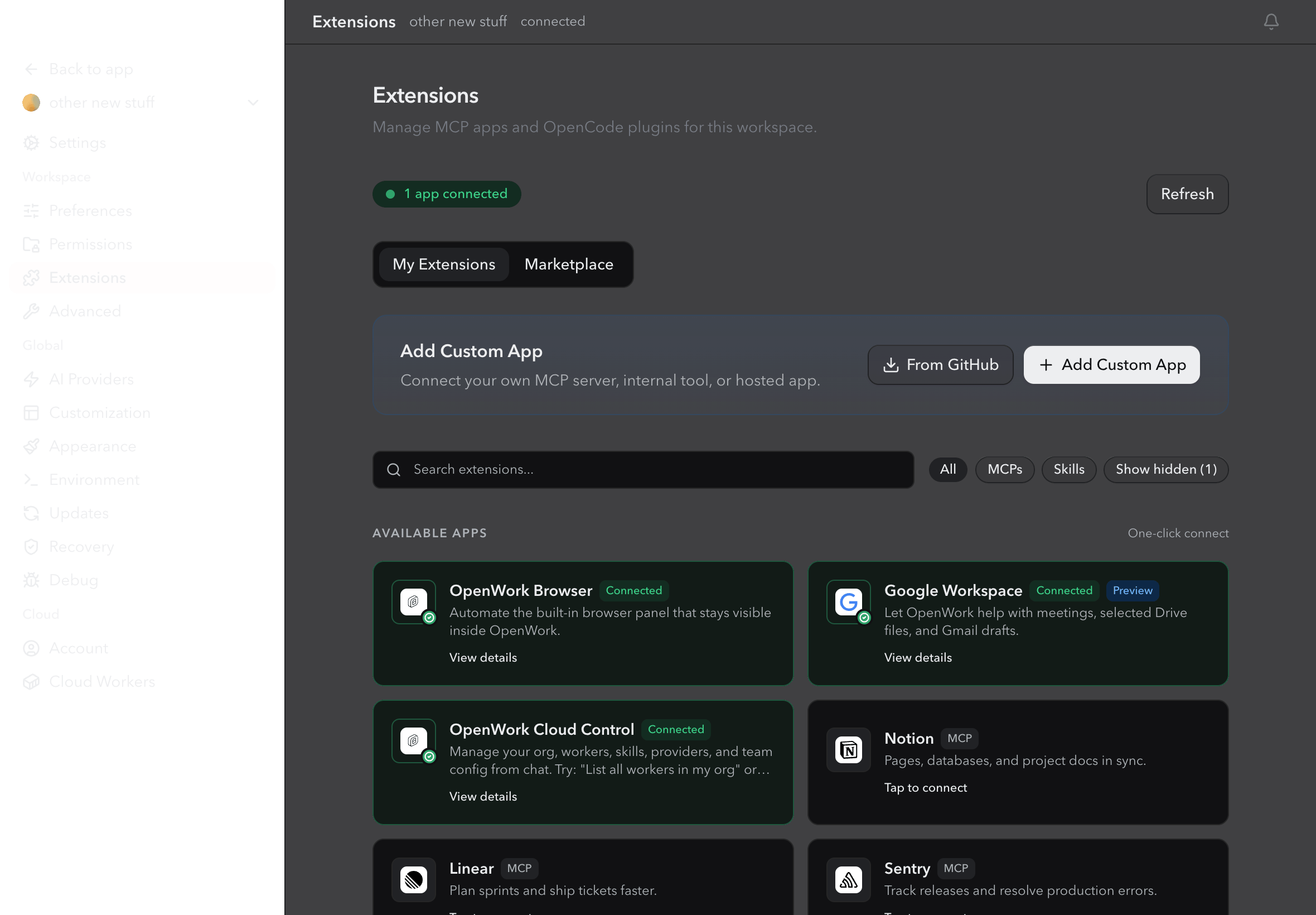
In OpenWork, open your workspace and go toSettings > Extensions. Click Add Custom App.
Add the Slack MCP server
In the Add Custom App dialog:- Set
App nametoslack. - Keep
Typeset toRemote (URL). - Set
Server URLtohttps://mcp.slack.com/mcp. - Open
Advanced OAuth. - Paste the Slack OAuth client ID.
- Paste the Slack OAuth client secret.
- Paste the same user token scopes you added in Slack, separated by spaces.
- Click
Add App.
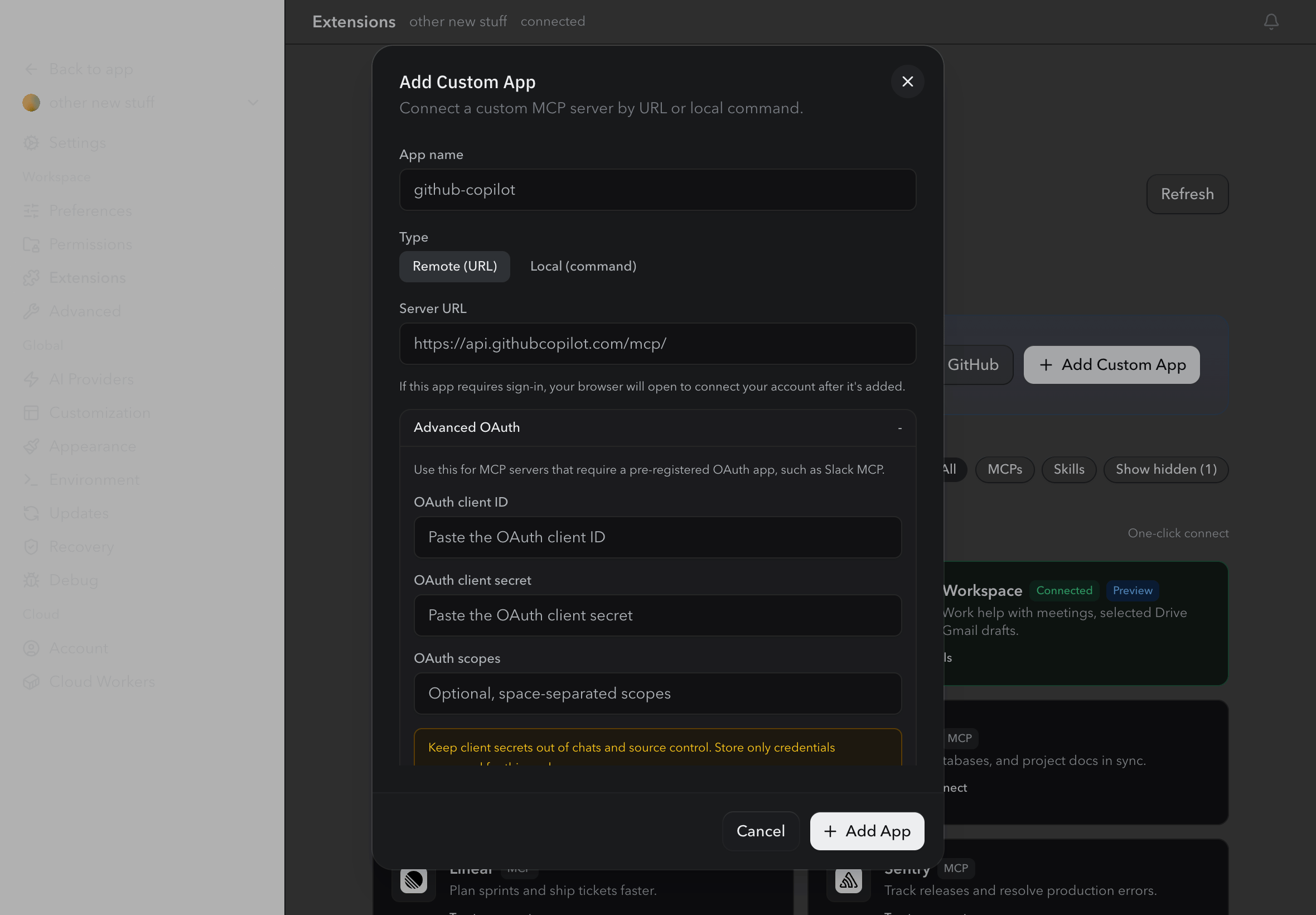
oauth.scope. This is the scope list Slack sees during OAuth consent.
Sign in to Slack
After the MCP app is added, reload the engine if OpenWork asks you to. Then start Slack MCP sign-in from the Slack app card or the MCP auth prompt. Slack opens in your browser and shows the scopes you configured. Approve the Slack app for the workspace you want OpenWork to use, then return to OpenWork when authorization finishes.Troubleshooting
If you see an error likeIncompatible auth server: does not support dynamic client registration, the Slack MCP entry is missing a pre-registered OAuth client ID and client secret. Reopen the Slack MCP setup, add those values under Advanced OAuth, reload the engine, and try sign-in again.
If Slack says the redirect URL is invalid, add http://127.0.0.1:19876/mcp/oauth/callback to the Slack app’s OAuth & Permissions redirect URLs.
If Slack says a scope is invalid or unavailable, remove that scope from both the Slack app and OpenWork’s OAuth scopes field, then retry. Slack workspace policies and plan settings can limit which scopes an app may request.
If your Slack workspace blocks app installation, ask a Slack admin to approve the app first. OpenWork cannot bypass Slack workspace approval policies.