> ## Documentation Index
> Fetch the complete documentation index at: https://openworklabs.com/docs/llms.txt
> Use this file to discover all available pages before exploring further.
# Team prompt cards
> Use desktop policies to show different suggested prompts to teams and members.
Organization prompt cards are an OpenWork Cloud desktop-policy feature. Admins manage them in Cloud, and assigned members see them in the desktop composer as task suggestions. Managing desktop policies requires an Enterprise plan; the API returns `402` when the org is not entitled.
## Create team prompts
1. Open the Cloud dashboard and go to `Settings > Desktop policies`.
2. Create a non-default policy for the audience. The default policy is org-wide only and cannot be assigned to members or teams.
3. Turn on `Organization prompt suggestions`.
4. Add 2 required prompts, and optionally a third. Each `Prompt` is limited to 500 characters; each `Description` is limited to 120 characters.
5. Assign the policy to `Members` or `Teams`, then save. The API stores those choices as `memberIds` and `teamIds`, so different departments can use separate non-default policies.
## Know what members see
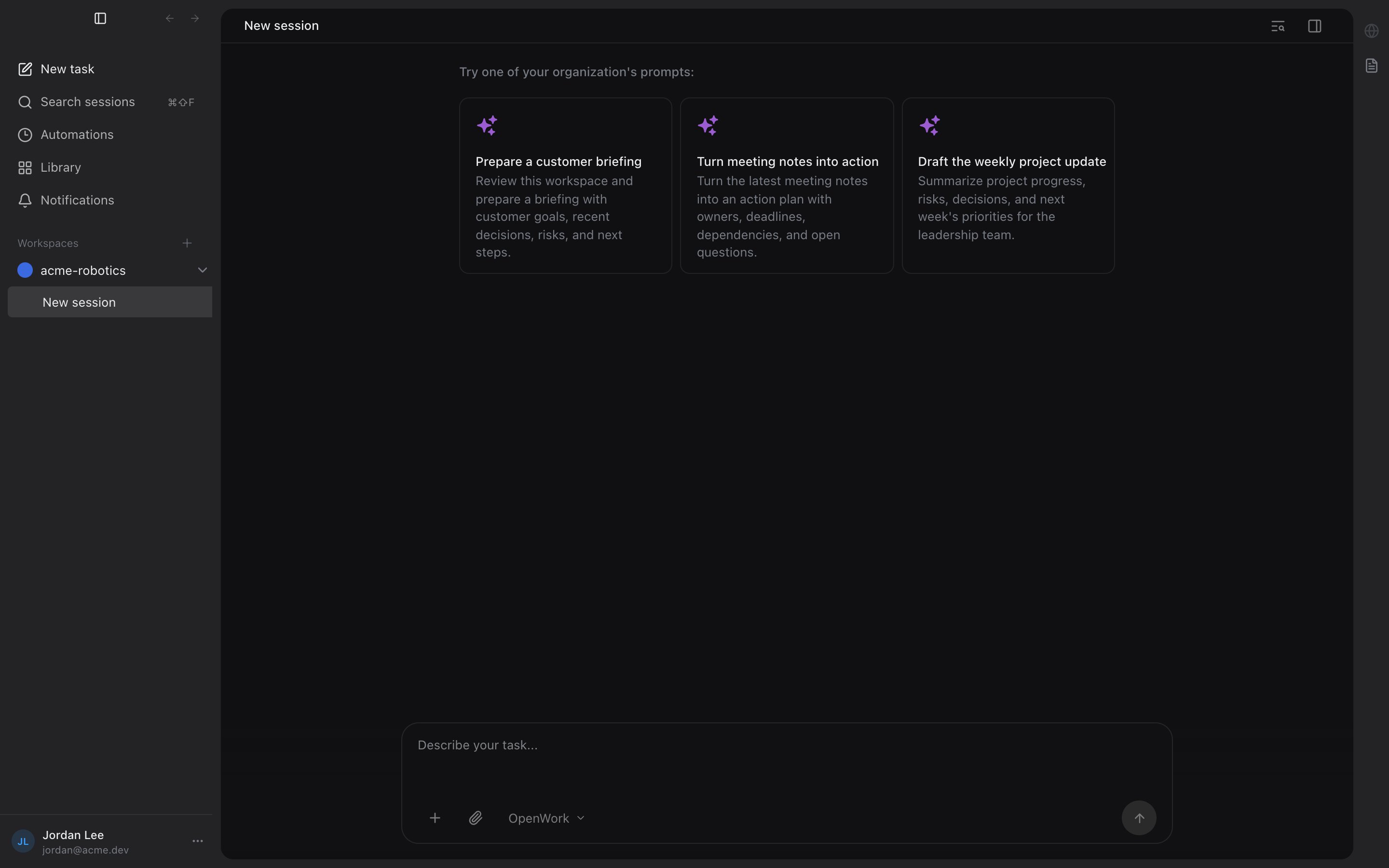 1. The admin's `Description` becomes the card title in the desktop app.
2. The admin's `Prompt` becomes the card body and the text inserted into the composer.
3. Clicking a card fills the composer; it does not auto-send the task.
4. Boolean policy toggles combine across every matching policy: any `true` wins.
5. Prompt cards do not combine. The desktop uses one prompt set from the matching policy with the highest `Priority`; ties go to the earliest created policy, then the lowest policy id.
6. Members receive changes from `GET /v1/me/desktop-config`. The desktop loads its cached config first, refreshes on Cloud session/settings changes, and polls every hour, so reload or switch the active Cloud organization if a change is not visible.
1. The admin's `Description` becomes the card title in the desktop app.
2. The admin's `Prompt` becomes the card body and the text inserted into the composer.
3. Clicking a card fills the composer; it does not auto-send the task.
4. Boolean policy toggles combine across every matching policy: any `true` wins.
5. Prompt cards do not combine. The desktop uses one prompt set from the matching policy with the highest `Priority`; ties go to the earliest created policy, then the lowest policy id.
6. Members receive changes from `GET /v1/me/desktop-config`. The desktop loads its cached config first, refreshes on Cloud session/settings changes, and polls every hour, so reload or switch the active Cloud organization if a change is not visible.