> ## Documentation Index
> Fetch the complete documentation index at: https://openworklabs.com/docs/llms.txt
> Use this file to discover all available pages before exploring further.
# Sharing MCP connections with your team
> Share Notion, Linear, Stripe, Exa, or any MCP server in OpenWork Cloud with Individual accounts by default, or One org account when everyone should act as the same account
Use `MCP Connections` when you want the org to manage an MCP integration once
— the server URL, who can use it, and how people sign in — instead of every
member configuring Notion or Linear by hand on every machine.
Two ways to handle whose account the AI uses, chosen per connection:
* **Individual accounts** — each person signs in as themselves. This is now
the default for OAuth servers, and it fits tools like Notion or Linear where
people have their own pages, projects, and permissions. The agent acts as
*you*, and the provider's own access rules apply.
* **One org account** — an admin signs in once (a bot, service account, or API
key). Every granted member's AI acts as that identity.
## Publish the connection in OpenWork Cloud
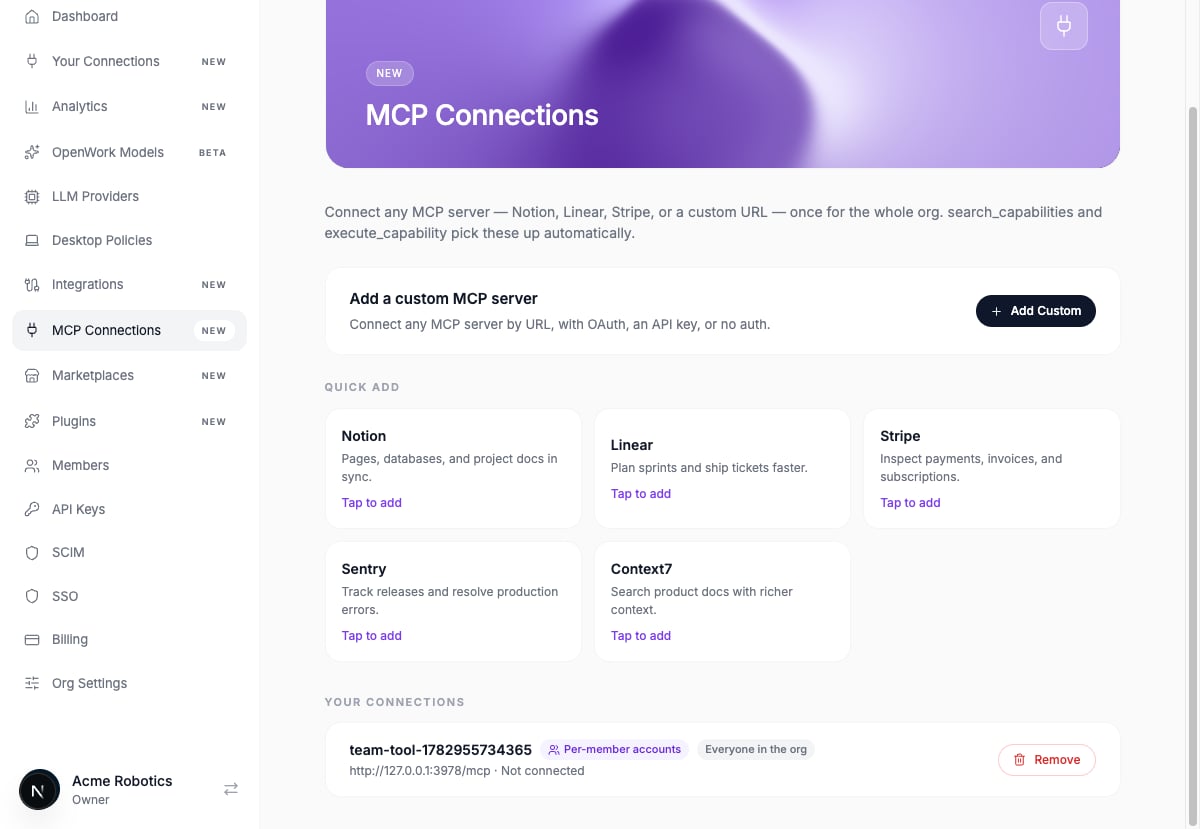
1. Open `MCP Connections` in the OpenWork Cloud dashboard.
2. Click `Add Connection`.
3. Pick a preset (Notion, Linear, Stripe, Sentry, Exa, Context7) or enter any
MCP server URL.
4. Choose the account mode: `Individual accounts` or `One org account`.
5. Choose who can use it: the whole workspace, specific teams, or specific
people.
6. Click `Create`.
 For a One org account connection, finish by clicking `Connect` and completing
the provider's sign-in as the org account. Individual accounts connections are
ready to publish immediately — each person connects themselves.
On `Your Connections`, an unconnected One org account connection shows
`Waiting for an admin to connect` to members. Workspace owners and admins get a
`Connect` button on that row so they can finish the org account sign-in there.
## OAuth redirect URL
An OAuth redirect URL, also called a callback URL, is the exact address where
the provider sends the browser after a person approves access. It belongs to
your specific Den deployment; it is not the MCP server URL or the client
metadata URL.
New MCP connections on one Den instance share this redirect URL:
```text theme={null}
/v1/mcp-connections/oauth/callback
```
For the hosted OpenWork Cloud instance, the dashboard is
`https://app.openworklabs.com` and its public Den API origin is
`https://api.openworklabs.com`. Register this exact redirect URL with the OAuth
provider:
```text theme={null}
https://api.openworklabs.com/v1/mcp-connections/oauth/callback
```
For a self-hosted instance whose public Den API is
`https://api.openwork.example.com`, register:
```text theme={null}
https://api.openwork.example.com/v1/mcp-connections/oauth/callback
```
Use the exact scheme, hostname, optional path prefix, and port configured in
`DEN_API_PUBLIC_URL`. Providers compare redirect URLs exactly. Existing
connections created with an older per-connection callback keep that registered
URL automatically; do not change it just to reconnect.
## Slack
Slack's MCP server requires a pre-registered Slack OAuth app.
1. Create or open a Slack app in [Slack API apps](https://api.slack.com/apps).
2. Add this Den instance's OAuth redirect URL to the Slack app's
`OAuth & Permissions` redirect URLs.
3. In OpenWork Cloud, add the Slack connection and paste the app's client ID
and client secret.
4. Members open `Your Connections` and connect their own Slack account.
For the advanced local desktop-only setup, see
[Connect Slack as a custom MCP](/docs/start-here/connect-your-stack/connect-slack-mcp).
## What members see in the desktop app
Granted members find the connection in `Settings` > `Connect`, grouped by what
they need to do:
* **Needs your sign-in** — individual-account connections that require the
member to authenticate or reconnect.
* **Needs admin setup** — connections that an organization admin still needs
to configure or authenticate.
* **Ready to use** — connections ready for the agent, including accounts
managed by the organization.
## Connect your account
1. Sign in to OpenWork, then open `Settings` > `Connect`.
2. Find the service under `Needs your sign-in`, then click `Connect`.
3. Your browser opens the provider's own sign-in page. Approve access.
4. The browser shows `Connected` — return to OpenWork.
5. The connection updates by itself, no reload needed, and moves to
`Ready to use`.
Your sign-in is stored in OpenWork Cloud, not on this machine — connect once
and every device you use is connected.
## Your agent can use it immediately
No restart, no resync. Ask for something the tool can do:
> Find the "Q3 launch" page in Notion and summarize it.
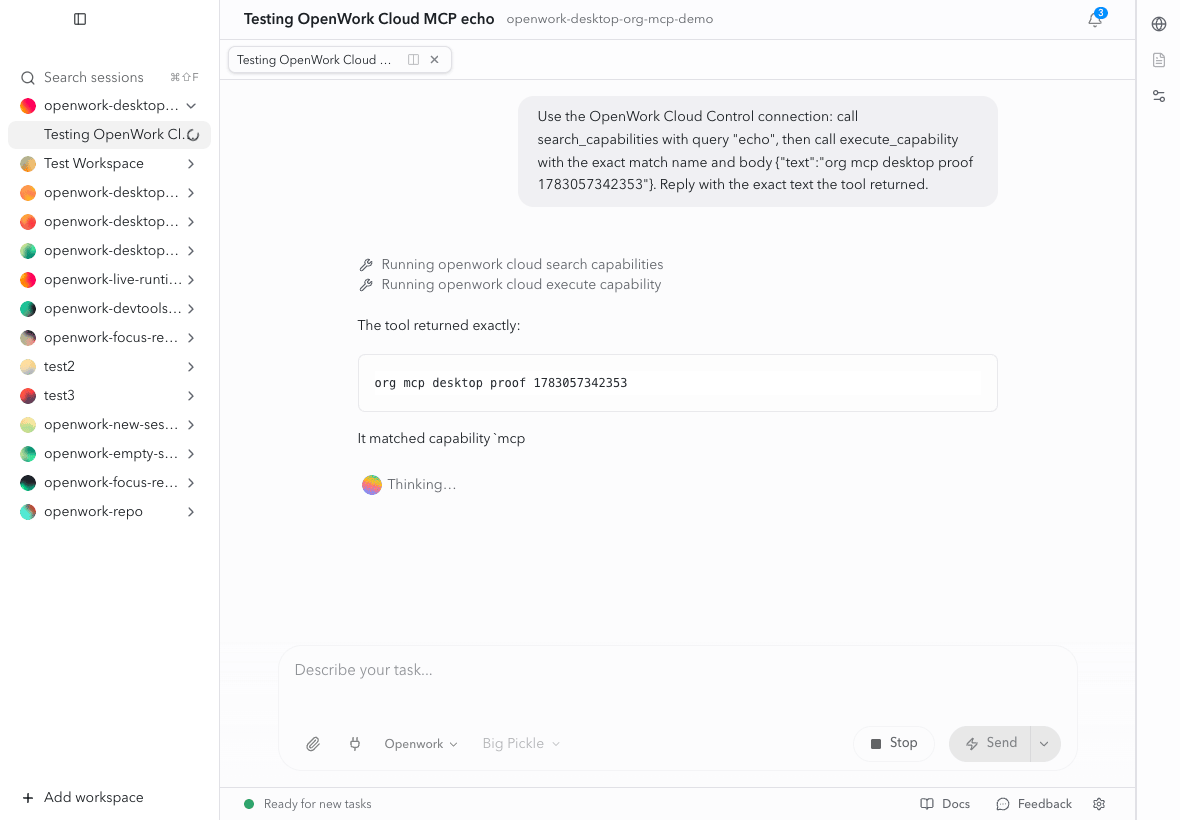
The agent searches the live capabilities available through OpenWork Connect,
then executes an exact match with **your** account — your permissions, your
audit trail on the provider's side.
For a One org account connection, finish by clicking `Connect` and completing
the provider's sign-in as the org account. Individual accounts connections are
ready to publish immediately — each person connects themselves.
On `Your Connections`, an unconnected One org account connection shows
`Waiting for an admin to connect` to members. Workspace owners and admins get a
`Connect` button on that row so they can finish the org account sign-in there.
## OAuth redirect URL
An OAuth redirect URL, also called a callback URL, is the exact address where
the provider sends the browser after a person approves access. It belongs to
your specific Den deployment; it is not the MCP server URL or the client
metadata URL.
New MCP connections on one Den instance share this redirect URL:
```text theme={null}
/v1/mcp-connections/oauth/callback
```
For the hosted OpenWork Cloud instance, the dashboard is
`https://app.openworklabs.com` and its public Den API origin is
`https://api.openworklabs.com`. Register this exact redirect URL with the OAuth
provider:
```text theme={null}
https://api.openworklabs.com/v1/mcp-connections/oauth/callback
```
For a self-hosted instance whose public Den API is
`https://api.openwork.example.com`, register:
```text theme={null}
https://api.openwork.example.com/v1/mcp-connections/oauth/callback
```
Use the exact scheme, hostname, optional path prefix, and port configured in
`DEN_API_PUBLIC_URL`. Providers compare redirect URLs exactly. Existing
connections created with an older per-connection callback keep that registered
URL automatically; do not change it just to reconnect.
## Slack
Slack's MCP server requires a pre-registered Slack OAuth app.
1. Create or open a Slack app in [Slack API apps](https://api.slack.com/apps).
2. Add this Den instance's OAuth redirect URL to the Slack app's
`OAuth & Permissions` redirect URLs.
3. In OpenWork Cloud, add the Slack connection and paste the app's client ID
and client secret.
4. Members open `Your Connections` and connect their own Slack account.
For the advanced local desktop-only setup, see
[Connect Slack as a custom MCP](/docs/start-here/connect-your-stack/connect-slack-mcp).
## What members see in the desktop app
Granted members find the connection in `Settings` > `Connect`, grouped by what
they need to do:
* **Needs your sign-in** — individual-account connections that require the
member to authenticate or reconnect.
* **Needs admin setup** — connections that an organization admin still needs
to configure or authenticate.
* **Ready to use** — connections ready for the agent, including accounts
managed by the organization.
## Connect your account
1. Sign in to OpenWork, then open `Settings` > `Connect`.
2. Find the service under `Needs your sign-in`, then click `Connect`.
3. Your browser opens the provider's own sign-in page. Approve access.
4. The browser shows `Connected` — return to OpenWork.
5. The connection updates by itself, no reload needed, and moves to
`Ready to use`.
Your sign-in is stored in OpenWork Cloud, not on this machine — connect once
and every device you use is connected.
## Your agent can use it immediately
No restart, no resync. Ask for something the tool can do:
> Find the "Q3 launch" page in Notion and summarize it.
The agent searches the live capabilities available through OpenWork Connect,
then executes an exact match with **your** account — your permissions, your
audit trail on the provider's side.
 If a connection needs attention, the agent should tell you which account needs
action and direct you to `Settings` > `Connect`.
## Notes for admins
* Members only see connections they've been granted — access is explicit
(workspace-wide, team, or per-person), and it's enforced by the server on
every request, not by the app.
* Removing a connection (or a member's access) takes effect immediately for
every device.
* Members who already connected a tool directly in their desktop app keep
their existing setup — publishing an org connection never removes or
changes anyone's local configuration.
## Relationship to local MCP servers
[Add a custom MCP server](/docs/start-here/connect-your-stack/add-an-mcp-server)
still works without a cloud account. Use that advanced path for local tools or
servers your organization does not provide. Use Connect for accounts and
services managed through OpenWork Cloud.
If a connection needs attention, the agent should tell you which account needs
action and direct you to `Settings` > `Connect`.
## Notes for admins
* Members only see connections they've been granted — access is explicit
(workspace-wide, team, or per-person), and it's enforced by the server on
every request, not by the app.
* Removing a connection (or a member's access) takes effect immediately for
every device.
* Members who already connected a tool directly in their desktop app keep
their existing setup — publishing an org connection never removes or
changes anyone's local configuration.
## Relationship to local MCP servers
[Add a custom MCP server](/docs/start-here/connect-your-stack/add-an-mcp-server)
still works without a cloud account. Use that advanced path for local tools or
servers your organization does not provide. Use Connect for accounts and
services managed through OpenWork Cloud.